How do I connect Amazon Redshift to Querri?
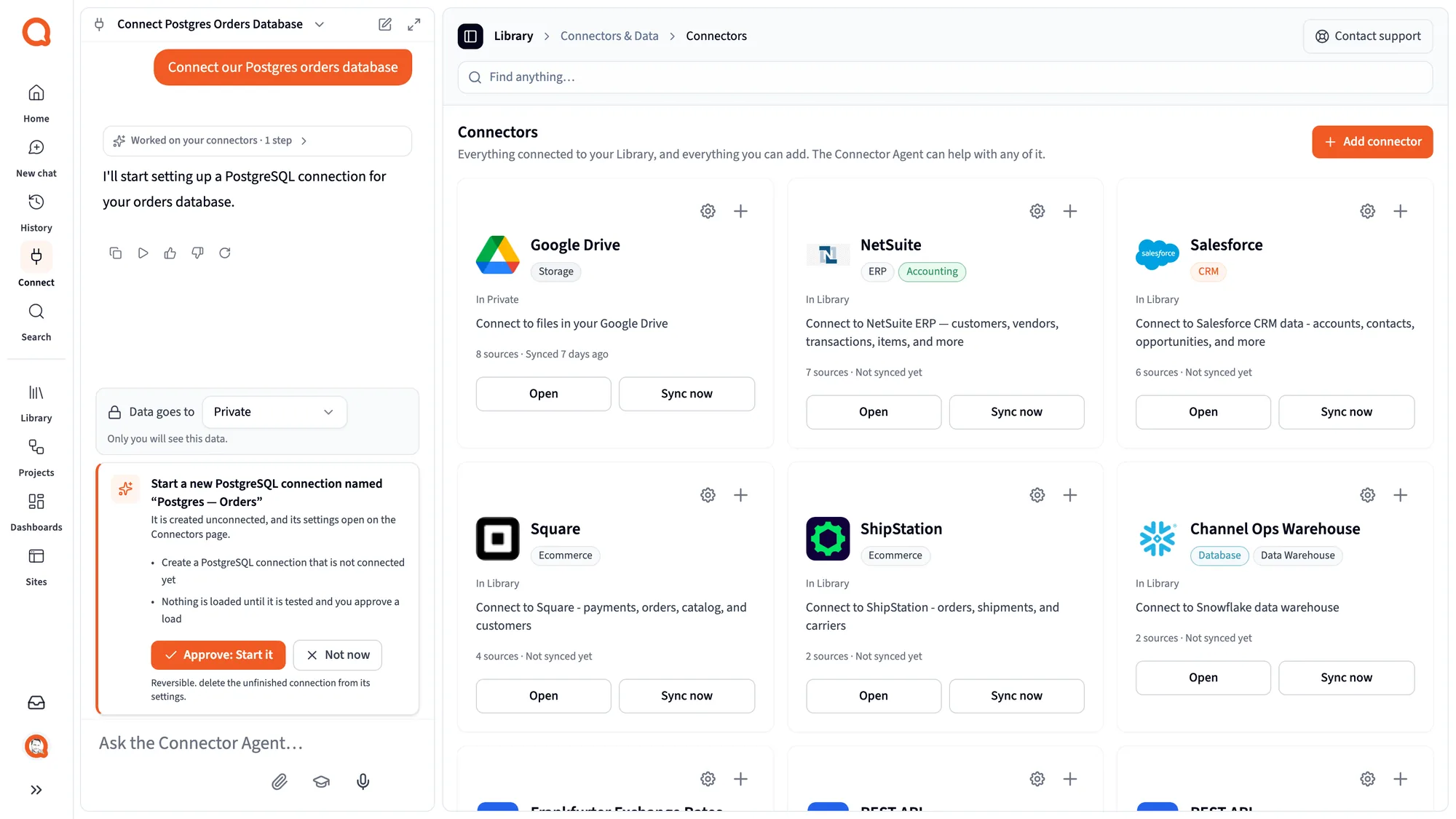
Ask the Connector Agent to connect Redshift, or pick it from the catalog. Enter the cluster host, port (5439 by default), database, schema and a database username and password. Then choose all tables or a few, set a schedule and approve. No data moves until you approve the load.
What Amazon Redshift data does Querri sync?
Tables and views from the database and schema you pick, either all of them or a set you choose in the table picker. Redshift's system databases and schemas are hidden. Querri can only sync what the database user you connect with is allowed to read.
How often does Amazon Redshift data sync?
A full refresh can be set to daily, weekly or monthly. Tables with a reliable change column, updated_at by default, can sync incrementally every hour, day or week, fetching only rows past the previous high-water mark. A manual sync is there for the day a report can't wait.
Does Querri write to or change my Redshift data?
No. Querri only reads your data; it never changes your records. It runs SELECT and cursor reads plus one session setting that makes table and column names case-sensitive for that connection. It never creates, updates or deletes a table or a row in Redshift.
Does Querri query Redshift every time someone asks a question?
No. Querri answers from its own copy of the tables you picked, refreshed on your schedule. Only syncs run queries on your cluster, so you can schedule them for quiet hours. Answers are as fresh as the last sync.
How do Redshift permissions carry over to Querri?
Querri can read only what the connected database user is granted, so give that user the schemas and tables you want in Querri. Redshift grants don't follow individual people into Querri; there, Querri's own sharing and a per-person row filter decide who sees what, in chat, dashboards, Claude and the API alike.
How do I combine Amazon Redshift and Salesforce data?
Connect Salesforce next to Redshift and both land in the same Library. Querri matches warehouse accounts to Salesforce accounts, best on an account ID stored in both, and says how it matched. Then you can ask about usage against contracts, renewals or open deals in one question.
How do I combine Amazon Redshift and NetSuite data?
Connect NetSuite beside Redshift. Querri lines up warehouse orders with NetSuite invoices on order number or customer and reports which field it used. Orders with no invoice, or invoices with no order, come back as a list you can work through.
How do I get a late shipments report from Amazon Redshift?
Sync your order and shipment tables, then tell Querri once what late means, for example shipped after the promised date. Ask for late rate by fulfillment center or carrier, pin it to a dashboard, and schedule it to arrive each Monday.
Can Redshift usage data feed a customer health score?
Sync the usage tables and connect your support tool, such as Intercom. Build the score once from usage, tickets and billing, then let nightly monitors flag accounts whose score drops. The customer health score playbook covers each step.
Can I export Amazon Redshift data to Excel automatically?
Yes. Save the pull as a project and put it on a schedule. Once the latest sync lands, Querri runs it again and mails a formatted workbook, split into one file per region or recipient when you ask. Nobody exports from query editor v2 or works around its 5 MB download cap.
Can I build custom Amazon Redshift dashboards without SQL?
Yes. Describe the board in a sentence, or begin with a screenshot of a dashboard your team already relies on. Edits are requests in plain words, charts can put warehouse tables next to CRM and ERP data, and a row filter keeps each viewer to their slice.
Can I ask ChatGPT or Claude about my Amazon Redshift data?
Yes, through Querri's MCP connection. Claude or ChatGPT then reads the synced Redshift tables through your Library, applies the definitions you've written down, and sees only the rows that person may see in Querri. It doesn't write fresh SQL against the cluster, so its late rate matches the dashboard's.
Can Querri sign in to Redshift with IAM or AWS SSO?
Not today. The connector uses a Redshift database username and password, which Querri stores encrypted. It doesn't use IAM roles, temporary credentials or AWS SSO. Create a dedicated database user with read access to the schemas you want in Querri.
Can Querri reach a Redshift cluster on a private network?
Yes, through the optional VPN setting. You supply an OpenVPN configuration file with its CA, certificate and key, all stored encrypted, and Querri connects through that tunnel. This covers clusters that are reachable only inside your VPC, for example behind PrivateLink.
How does Querri handle very large Redshift tables?
Rows stream straight into Parquet, so a table is never held in memory at once. For tables of tens of millions of rows, a chunked mode reads in ordered batches, 100,000 rows by default, saves each batch as it finishes and resumes from the last one if a sync fails.
What are the limits of the Amazon Redshift connector?
Each connection reads one database and schema. Incremental syncs skip rows whose cursor column is NULL, so pick a column that is always filled. Incremental syncs don't see deletions until the next full refresh. With SSL on, traffic is encrypted, but the server certificate isn't verified.
Is my Amazon Redshift data secure in Querri?
Yes. Querri holds SOC 2 Type II, HIPAA and ISO 27001:2022 certification. Your database password and any VPN keys are stored encrypted, Querri only reads from Redshift, and your data is never used to train a model.
 Amazon Redshift + Querri